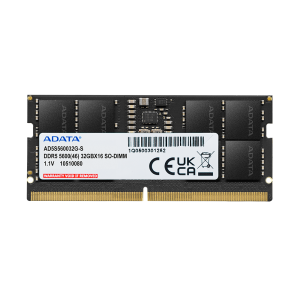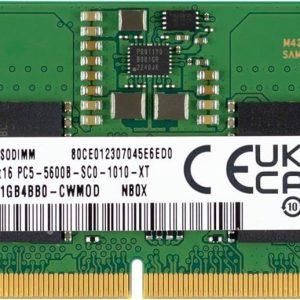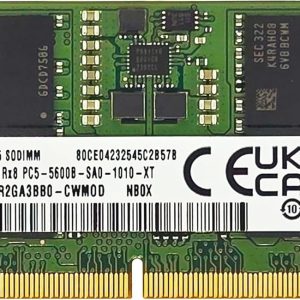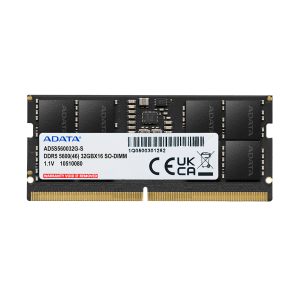

Is your laptop feeling sluggish? Before spending hundreds or thousands on a new device, consider a RAM upgrade. Upgrading laptop memory is often the single most cost-effective way to dramatically improve performance and extend your device’s lifespan. Many laptop owners don’t realize how simple and affordable this upgrade can be.
Signs Your Laptop Desperately Needs More RAM
Does any of this sound familiar?
Application Lag and Freezing: Your system becomes completely unresponsive when you have multiple browser tabs open. Even switching between applications causes noticeable delays.
Slow Application Launch: It takes 30+ seconds for your web browser or text editor to open, even though they used to launch in seconds.
Hard Drive Noise: You hear constant hard drive clicking and grinding, indicating the system is heavily using virtual memory (disk swapping).
Stuttering and Choppy Video: Video playback stutters or is choppy even when watching YouTube at standard quality. Gaming is nearly unplayable.
Multitasking Frustration: You can’t have Photoshop and a browser open simultaneously without the system crawling to a halt.
Tasks Taking Forever: Simple tasks like copying large files or exporting documents take an unusually long time.
How RAM Upgrades Dramatically Improve Performance
When your system runs out of RAM, it starts using your hard drive as “virtual memory.” This is where the dramatic slowdown happens. Even with a fast SSD, disk access is about 100x slower than RAM access. Here’s what you can expect when upgrading:
Upgrading from 4GB to 8GB:
- Application launch time: 40-50% faster
- Web browsing with 10+ tabs: 60-70% smoother
- Overall responsiveness: Feels like a brand new laptop
- Video playback: Smooth even with other applications open
Upgrading from 8GB to 16GB:
- Content creation (Photoshop, video editing): 50-100% performance improvement
- Programming and development: Much fewer freezes when compiling large projects
- Gaming: Stable frame rates and no stuttering
- Virtual machines: Can run multiple VMs simultaneously
Upgrading from 16GB to 32GB:
- Professional video editing: No need to optimize footage before importing
- 3D modeling and rendering: Projects load and render significantly faster
- Data analysis: Work with massive datasets without lag
- Music production: Large sessions with hundreds of tracks become manageable
Why RAM Upgrades Are So Cost-Effective
The math is compelling:
Cost Comparison:
- RAM Upgrade (4GB to 8GB): $30-50
- RAM Upgrade (8GB to 16GB): $40-80
- New Budget Laptop: $400-800
- New Mid-Range Laptop: $1000-2000
- High-End Laptop: $2000-4000
You get 80% of the performance improvement of a new laptop for just 5-10% of the cost! That’s an extraordinary return on investment, especially when your current laptop still has a decent processor and SSD.
Identifying Compatible RAM for Your Laptop
Before purchasing RAM, you need to confirm three things:
1. Check Your Current RAM: Go to Settings → System → About (Windows) and look for “Installed RAM.” Note the amount and type (usually DDR3, DDR4, or DDR5).
2. Determine Maximum Supported RAM: Visit your laptop manufacturer’s support page (Dell, HP, Lenovo, ASUS, etc.) and search for your exact model number. Note the maximum RAM supported—most modern laptops support 8GB, 16GB, or 32GB maximum.
3. Identify SODIMM Type and Speed: Use CPU-Z (free tool) to identify your exact RAM specifications: capacity, type (DDR4 or DDR5), speed (MHz), and latency (CAS).
Match these specifications exactly when ordering replacement RAM.
Installation Guide: DIY Upgrade
Tools Needed: Phillips head screwdriver (small), anti-static wrist strap (optional but recommended), and your replacement RAM module.
Step-by-Step Process:
- Power down completely: Don’t just put it to sleep—shut down fully and wait 2 minutes for residual power to dissipate.
- Locate RAM compartment: Most laptops have a small door on the underside or inside. Consult your manual if unsure.
- Remove battery if possible: Some laptops allow battery removal; do this for maximum safety.
- Ground yourself: Touch a metal part of the case to discharge static electricity.
- Remove existing RAM: Pop the clips on both sides of the RAM module simultaneously—it will pop upward at an angle.
- Install new RAM: Insert at a 45-degree angle, then press down until the side clips snap into place.
- Reboot and verify: Power on and check Settings to confirm the new RAM is recognized.
When Laptop RAM Isn’t Upgradeable
Some modern laptops, particularly ultrabooks and premium models (Apple MacBooks, some ASUS ZenBooks), have soldered RAM that cannot be upgraded. If your laptop has this, you’re stuck with your initial purchase.
Before buying a new laptop, always check the upgrade options. This is especially important if you plan to use it beyond 2-3 years.
Timeline: How Long Will an Upgrade Last?
A RAM upgrade adds 2-5 years of useful life to your laptop:
- Year 1-2: Dramatic improvement in responsiveness
- Year 2-3: Excellent performance for most tasks
- Year 3-4: Good performance but may need SSD upgrade as well
- Year 4-5: Acceptable if you use simple applications
Many users find that upgrading both RAM and SSD together gives them another 4-5 years of productive use.
Complementary Upgrades to Consider
While you’re upgrading your laptop, consider these additional improvements:
SSD Upgrade: If your laptop still has a mechanical hard drive, replacing it with an SSD will have an even bigger impact than adding RAM. The combination of both upgrades is transformative.
Thermal Paste Replacement: Older laptops accumulate dust and dried thermal paste. Reapplying thermal paste between the CPU/GPU and heatsink can improve cooling and performance.
Cleaning and Maintenance: Blow out dust from fans and vents—dust accumulation causes thermal throttling.
Bottom Line: Should You Upgrade?
Absolutely. If your laptop is 2-5 years old and still has a good processor (Intel i5+ or AMD Ryzen 5+) but feels sluggish, a RAM upgrade is one of the best investments you can make. For $30-80, you can get another 2-5 years of reliable performance from your existing hardware.
Don’t let RAM limitations force you to replace a perfectly good laptop. Upgrade instead, and keep your old one going strong!